 CamSwitch
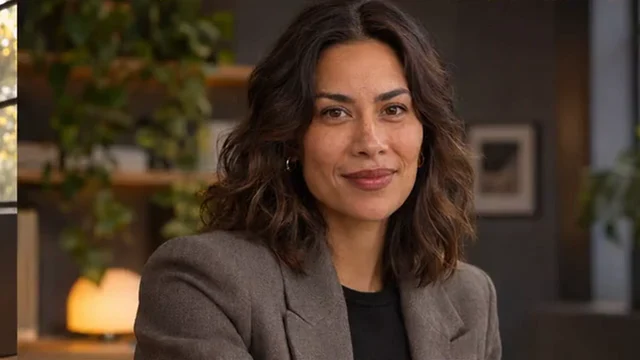
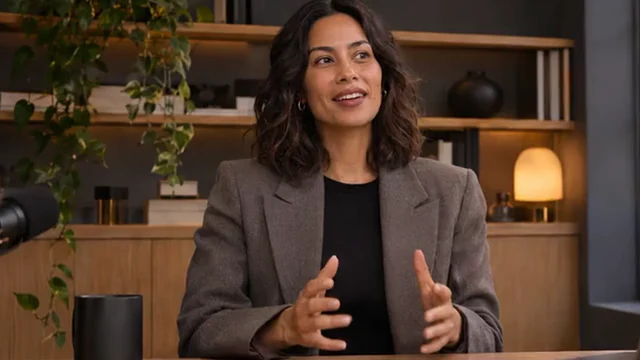
Talk to camera with two or three angles and get a ready-cut video plus a Short from the same take.
The multi-camera studio for Mac
Record. Switch. Present. Edit. All in one Mac app.
Talk to camera, run a live show, record a tutorial and edit by the words. Every camera is saved, a vertical cut is made for you, and your video is done the moment you stop.
$69 once, no subscription7-day free trial30-day money-backNo video skills neededApple silicon · macOS 26+
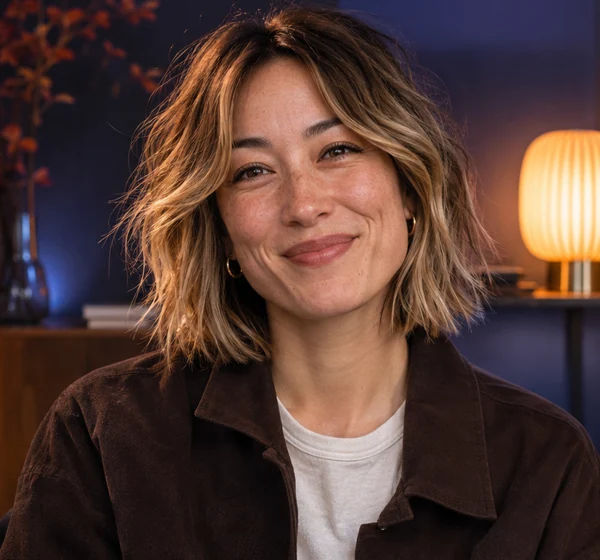
Real recordings of the CamSwitch app. The people on camera are AI-generated.
Switch by click, number key or the camera you faceEvery camera saved + Final Cut timelineVertical 9:16 recorded in the same takeExplore A-Roll →
Scenes, lower thirds and layoutsGuests join by browser link, no appStream to several platforms at once (beta)Explore Presenter →
Screen, window or app with a camera bubbleAutomatic zoom on clicks, smooth pointerShortcut keys shown, typing never loggedExplore Screen →
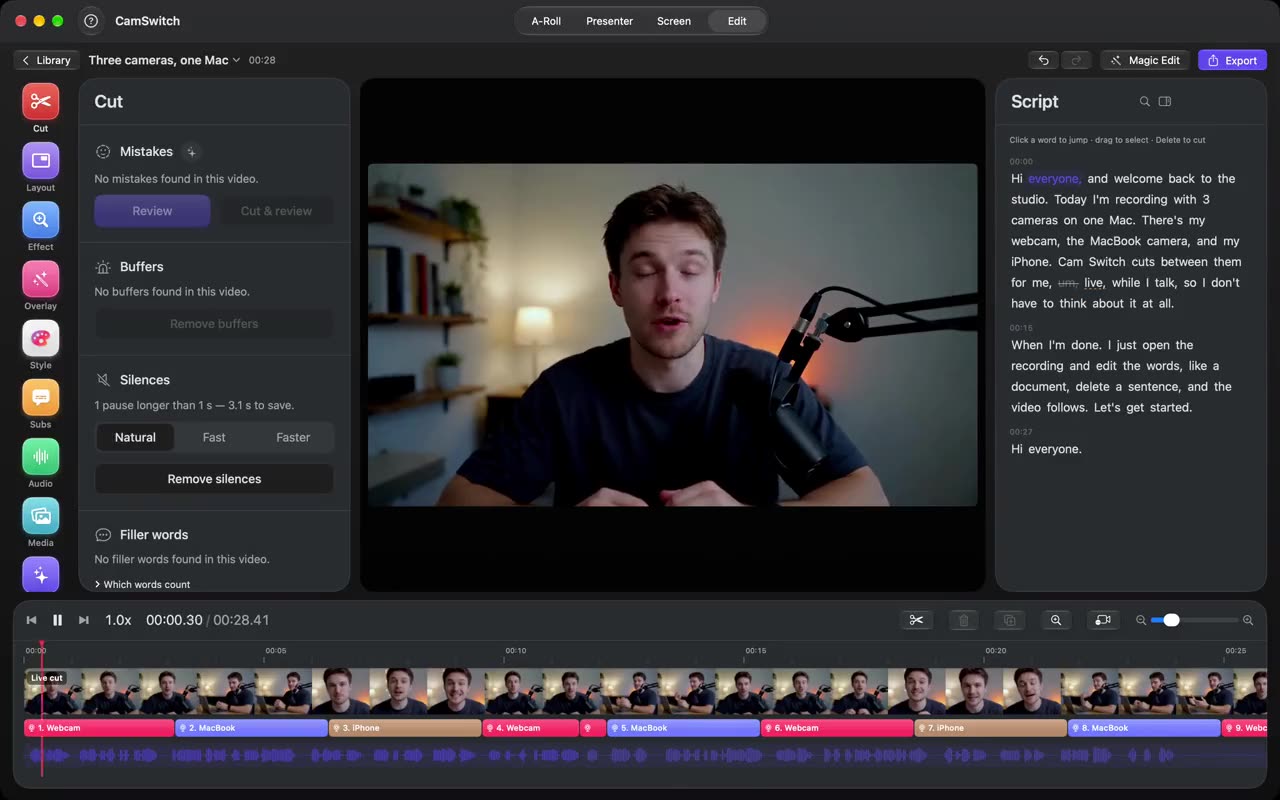
Cut words from the transcriptMagic Edit removes fillers and silences24 caption styles, on your MacExplore Edit →
Works with the places your videos go
Works with YouTube, YouTube Shorts, Twitch, Facebook Live, TikTok, Instagram Reels, LinkedIn Live, Kick, Zoom, Google Meet, Microsoft Teams, Final Cut Pro, DaVinci Resolve and any RTMP server.
You don’t need to know anything about video. If you can press Record, you can use CamSwitch.
Made for non-technical people
Studio results. No learning curve.
Most video apps make you learn scenes, sources, encoders and editing before you get anything you can post. CamSwitch does the fiddly parts for you, in plain words, so you can just talk.
-
1
Pick what you’re making
Talk to camera, record your screen, film a podcast or go live. CamSwitch sets itself up for it.
-
2
Press Record and talk
Look at a different camera and it switches for you. No buttons to remember, no settings to tune.
-
3
Stop. Your video is ready.
The finished video, a vertical copy for Shorts and every camera’s own file are waiting in your Movies folder.
The usual way
- Learn scenes, sources and encoder settings
- Switch cameras by hand while you talk
- Re-edit everything again for vertical
- Export, then caption in another app
- Pay a monthly subscription
With CamSwitch
- Choose what you’re making. That’s the setup.
- It follows the camera you look at
- The vertical version records at the same time
- Captions and “um” removal in one click
- Pay once. Works offline. No account.
Picks the right cameraMakes the vertical versionZooms in where you clickCleans up your voiceCuts the “um”sAdds captionsSaves every angleExplains problems in plain English
Who it’s for
Made for people who make videos.
Record your screen with your face in a bubble. It zooms in where you click so lessons are easy to follow.
 Host
 Guest
Film host and guests in the room or by link. Every camera and every guest’s voice is saved separately.
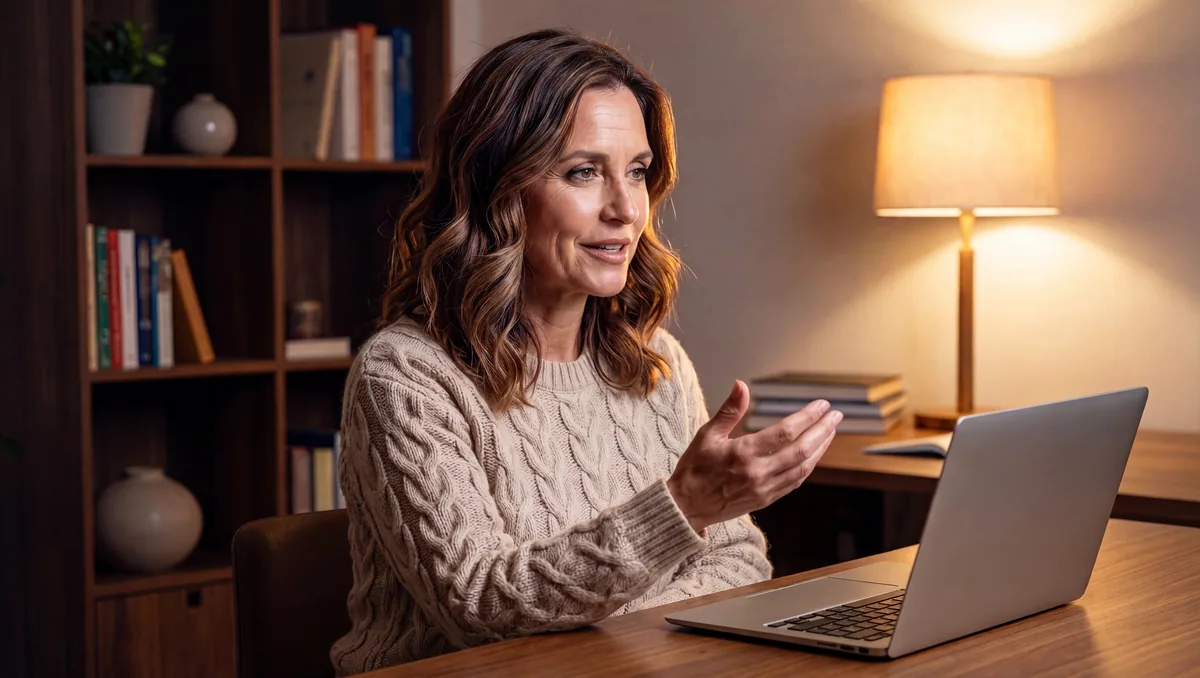
Product demos, sales videos and updates that look polished, without hiring an editor.
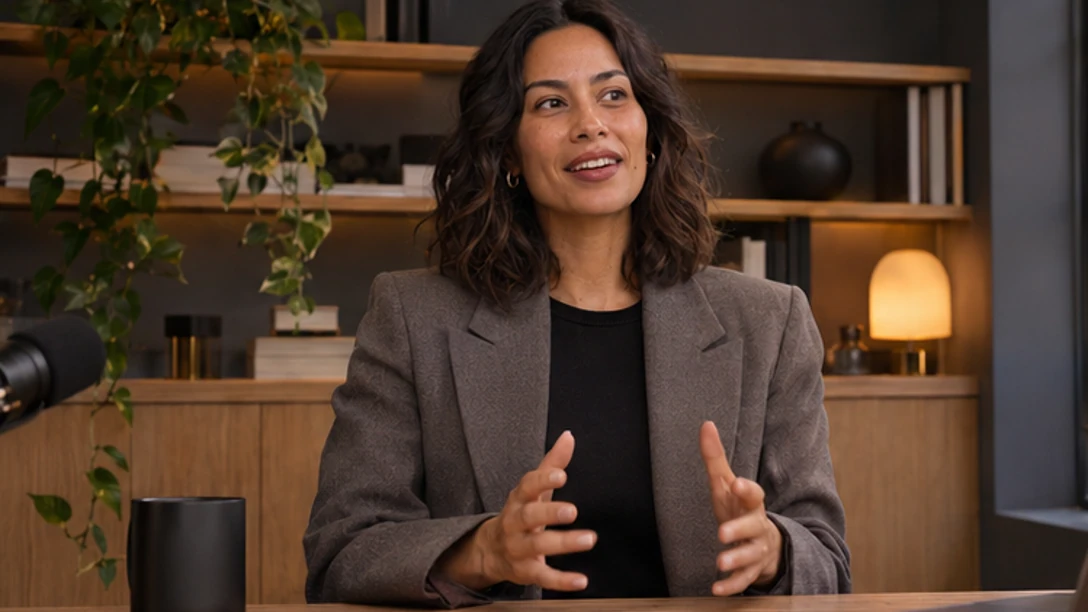
Run a live show with titles, slides and guests, and stream it to several platforms at once.
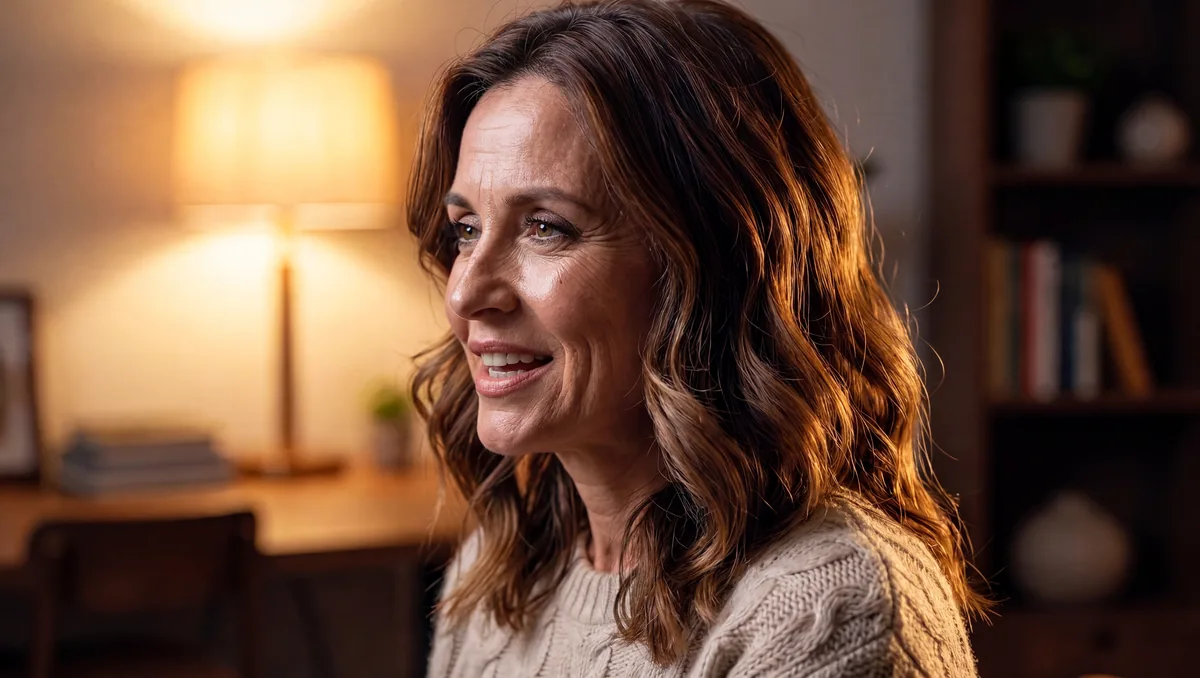 You · CamSwitch Camera
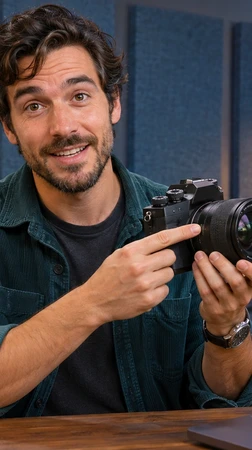
Use your best camera, a nicer background and lower thirds in any video call.
One take, every shape
Record once. Post everywhere.
CamSwitch records the wide video and a vertical, square or 4:5 version at the same time, with your face kept in frame. No re-editing for Shorts, Reels or TikTok.
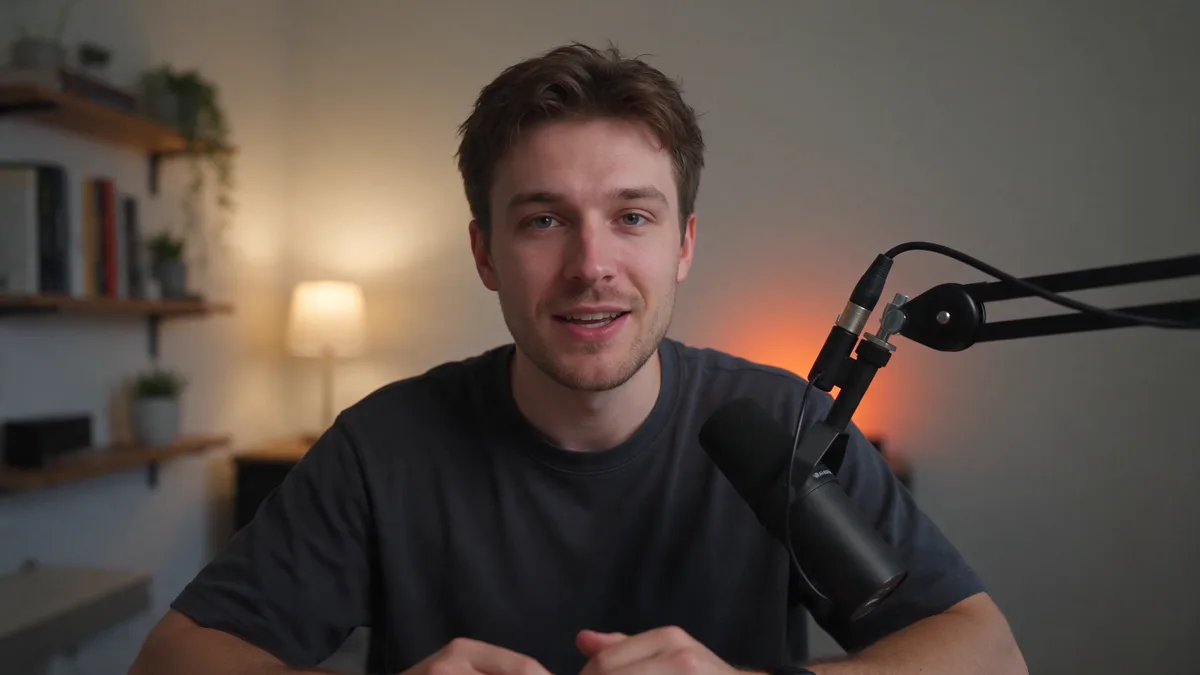 Here’s how I film with one Mac
Private by design
Your videos stay on your Mac.
No account, no cloud, works offline. The internet is only used when you choose to.
- Recordings and projects saved in your Movies folder
- Captions and transcripts made by your Mac
- Voice clean-up and background removal done on your Mac
- Your license checked offline, no sign-in
No account. Nothing is uploaded unless you turn it on.
Only when you choose
- Going live sends your show to the platforms you pick
- Guest links connect phones and guests to your Mac
- Cloud AI only with your own key, and it tells you the cost
- Update check once a day, and you can turn it off
Each one is its own switch. Turn one on and only that goes out.
Inputs to outputs
See your camera workflow in action.
Play the six demos or build a route from camera to recording, call, edit, or live stream.
Setup details
Source
Use a USB webcam that macOS recognizes.
Workflow
Prepare your camera, guest and screen-share scenes in Presenter.
Destination
Choose YouTube in Go Live and enter your stream key.
THE MAC STUDIO
What are you making?
Start with a talking head, a software walkthrough, a multi-angle shoot or a live show. Bring the same cameras with you.
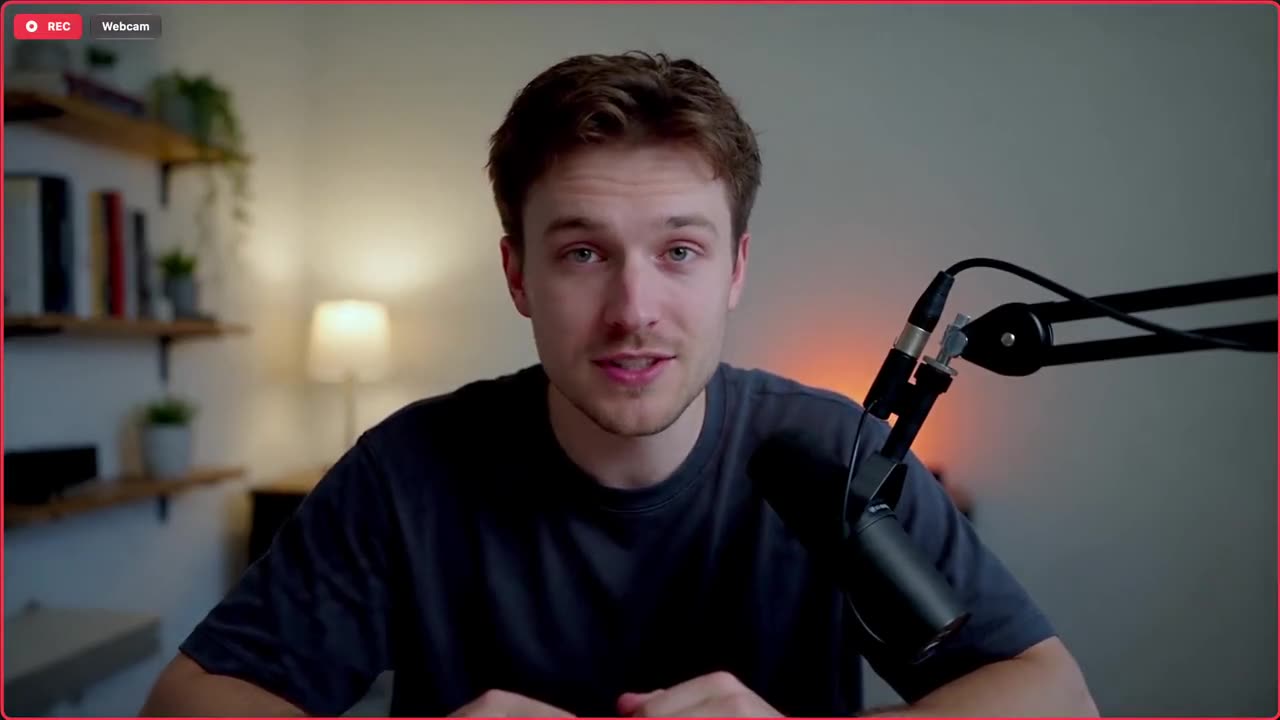 Real app recording
A-ROLL
Record a talking head with A-roll.
Film a piece to camera with your MacBook, iPhone or webcam. Pick your shot with a number key, or let CamSwitch follow the camera you face. Match the look across cameras before you record.
A-roll features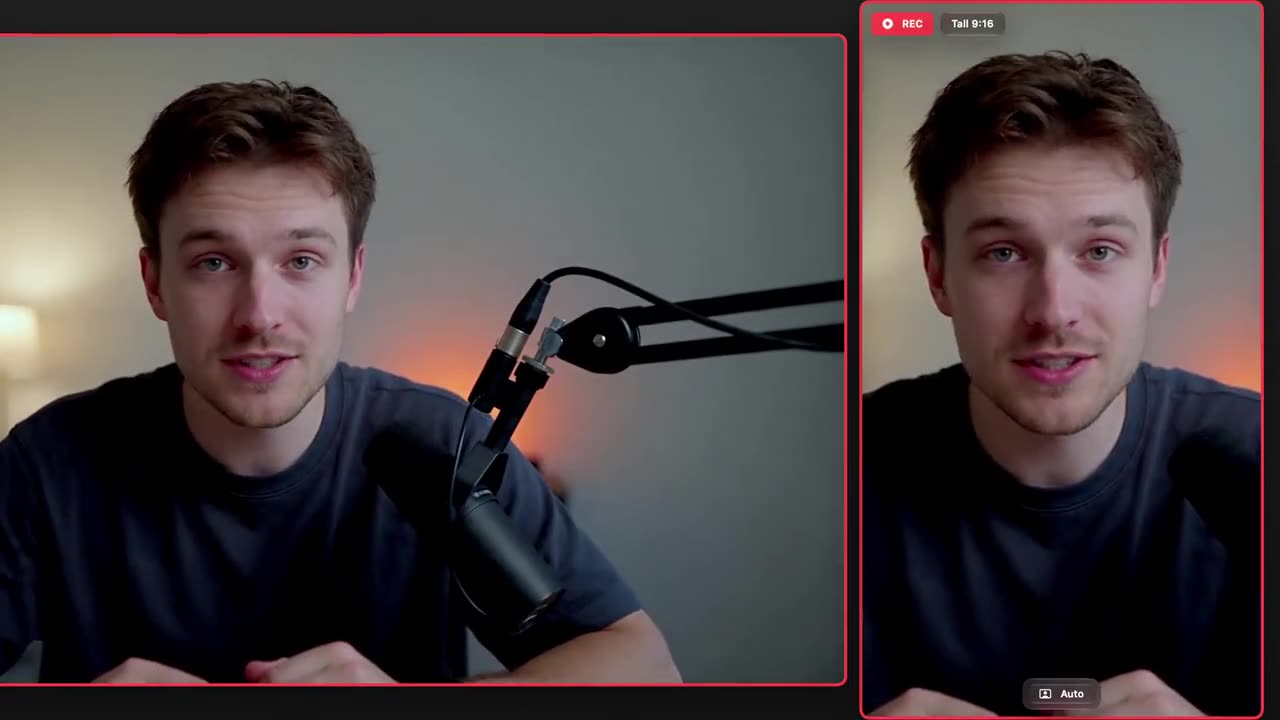 Real app recording
MULTI-CAMERA
Record a multi-camera shoot.
Film a podcast in the room, a hands-on demo, or a two-angle YouTube video. Record the switched program and a separate file for each camera, then revisit any cut in Final Cut Pro.
Multi-camera features Real app recording
SCREEN RECORDER
Record your screen with a camera bubble.
Capture a Mac display or window for a tutorial, course, or product walkthrough. Add a camera bubble and choose whether to capture your mic and computer sound.
Screen Recorder features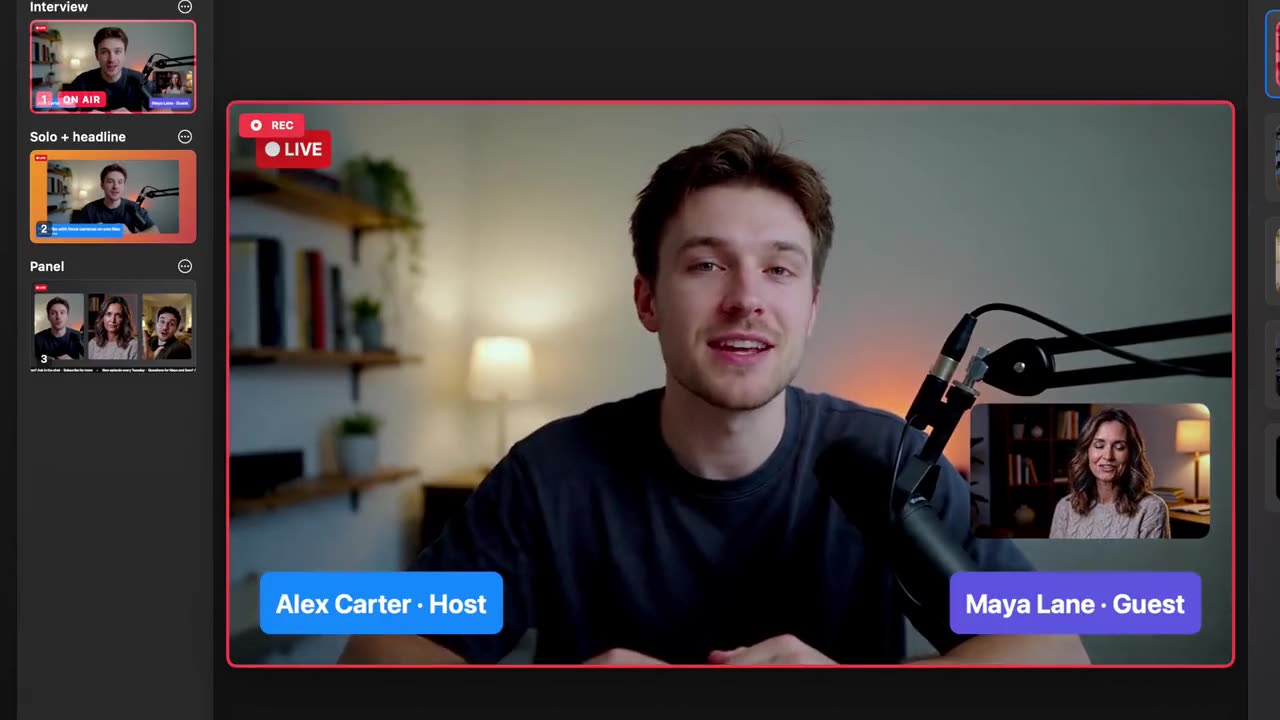 Real app recording
PRESENTER
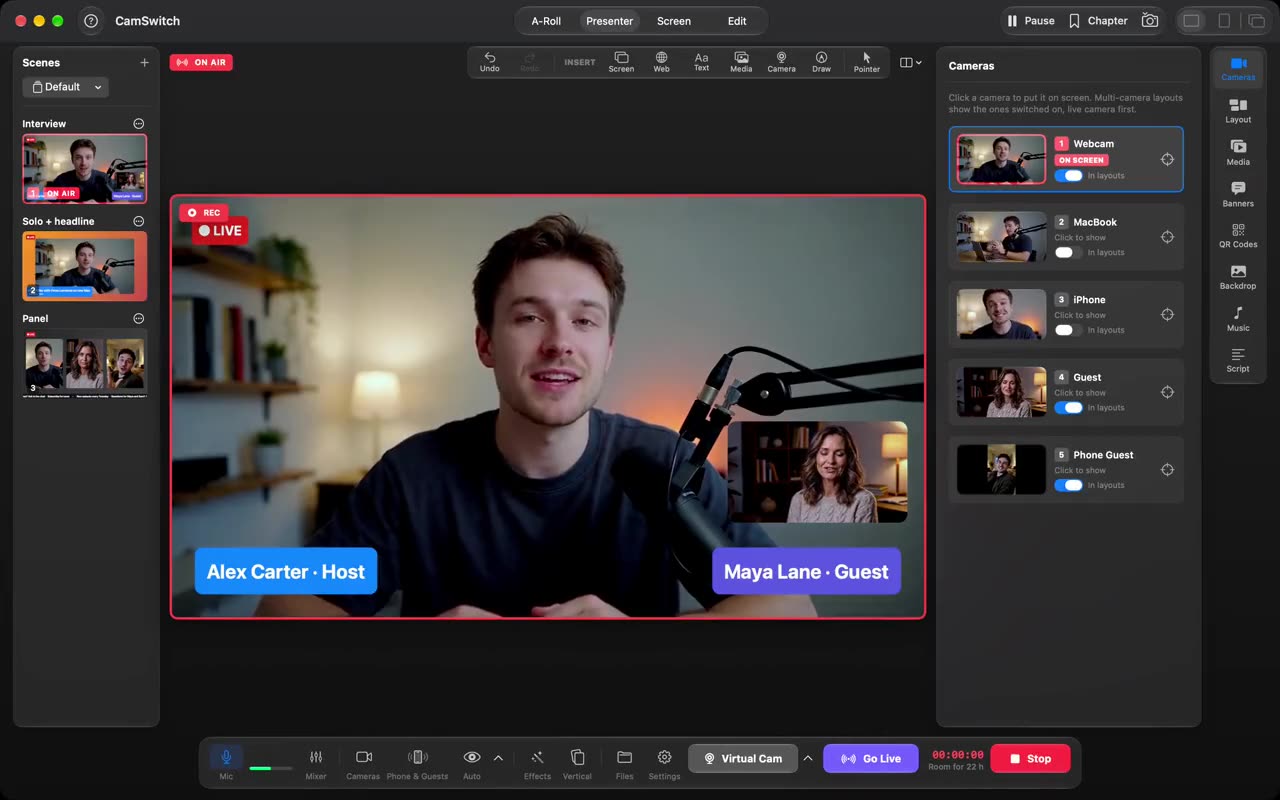
Produce a live show with Presenter.
Build a podcast or live-stream scene with cameras, slides, screen share and lower thirds. Preview the next scene before taking it live. Send the program to an RTMP or RTMPS destination, or use it as a virtual camera.
Presenter featuresCAMSWITCH FEATURES
One Mac. The whole workflow.
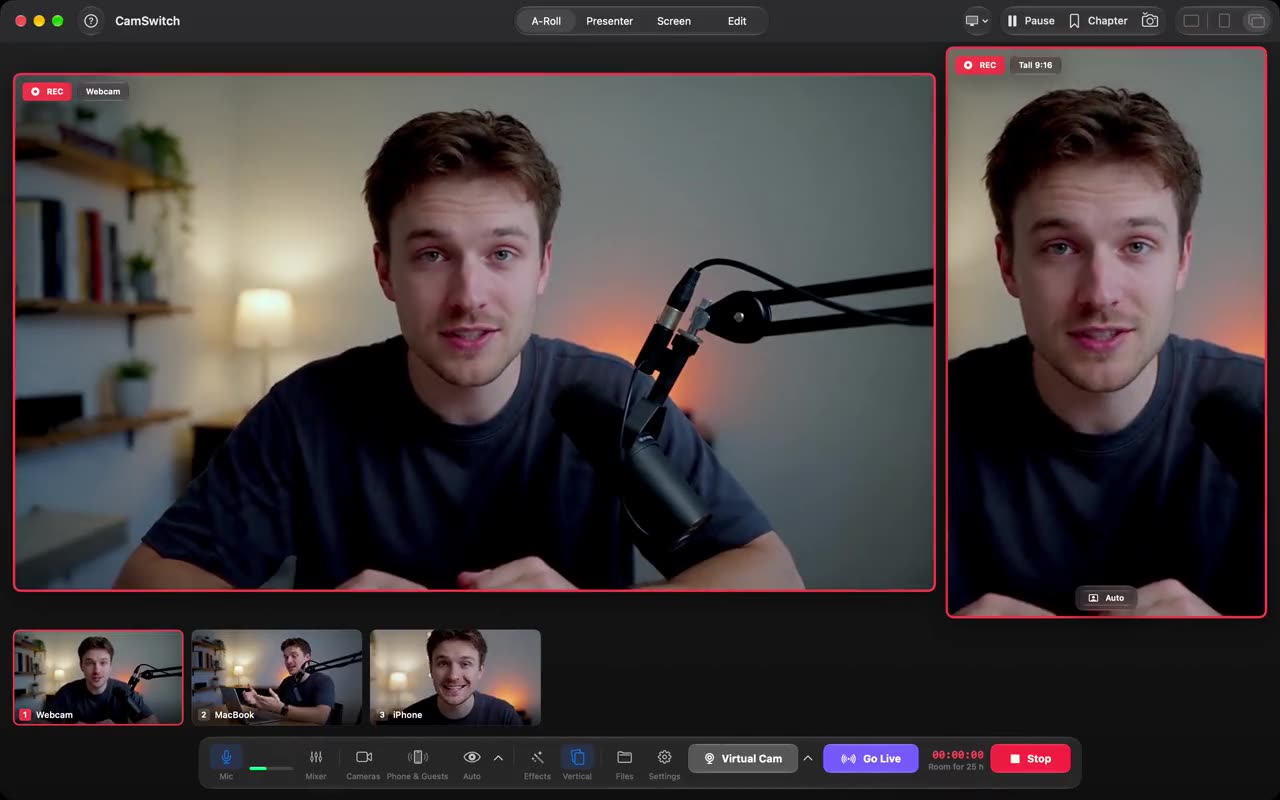
Multi-camera recording
Record the switched show, retain each camera and open the cuts in Final Cut Pro.
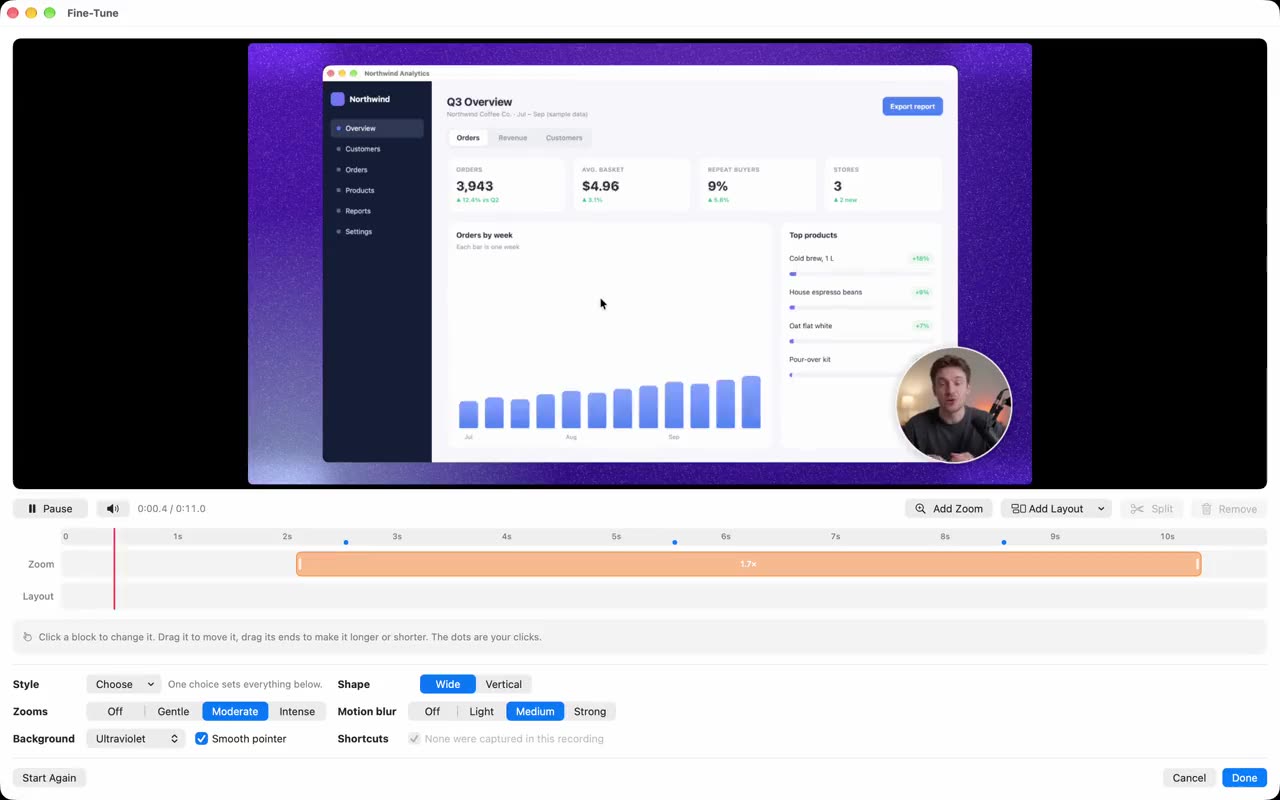
Screen Recorder
Record a display or window with an optional camera bubble, microphone, and computer audio.
Presenter
Compose a podcast, webinar or live stream from cameras, screen share, slides and graphics.
Edit
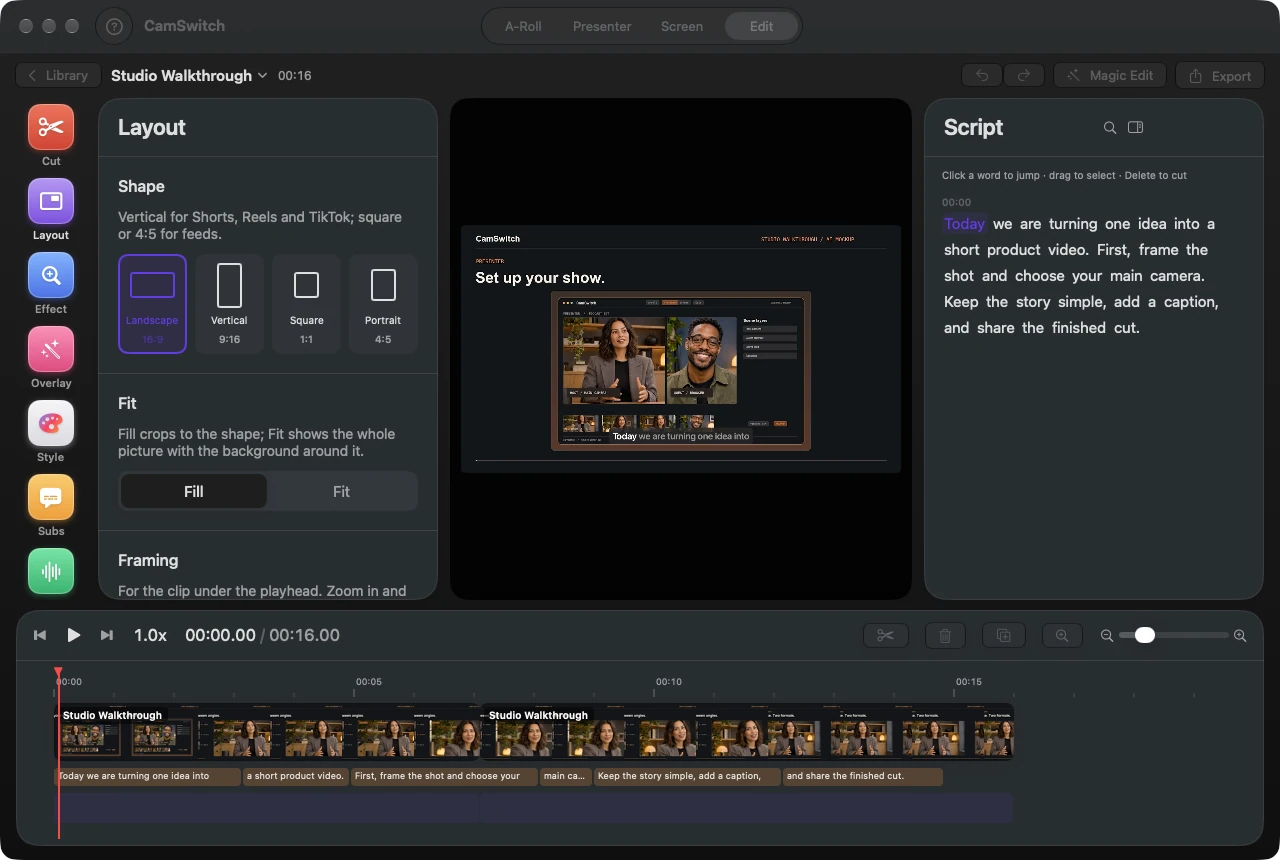
Cut by transcript or timeline, swap camera angles and finish with graphics, audio and captions.
Camera effects
Adjust a camera live or apply one look across your studio.


Live streaming
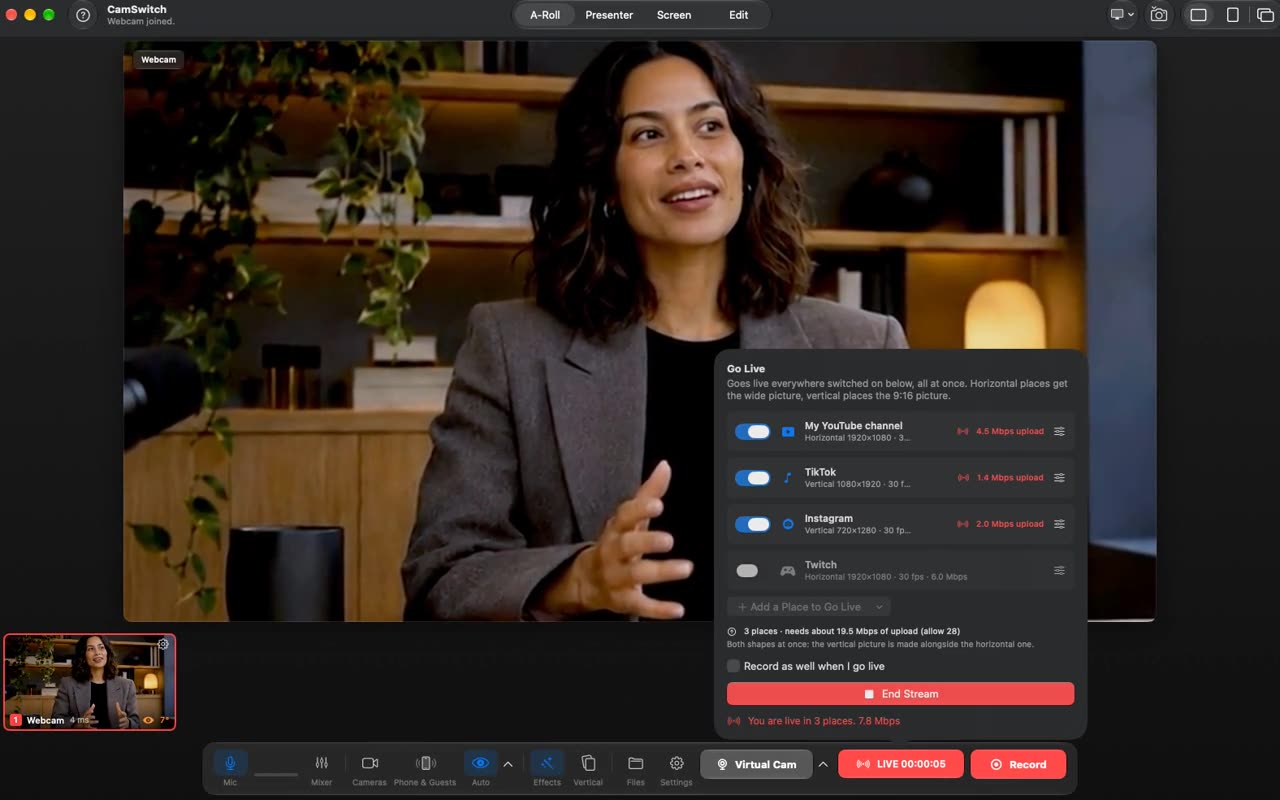
Send CamSwitch’s picture and sound to YouTube, Twitch, Facebook or another RTMP destination.
CAMERA & SCREEN INPUTS
Use the cameras you have.
Give the host a close-up, put an iPhone on the wide shot, and invite a remote guest by browser link.
How guest links work-
Mac camera or USB webcam
Put any camera that macOS recognizes on its own input.
-
iPhone with Continuity Camera
Use a compatible iPhone as a camera without adding a capture card.
-
Phone & guest camera link
Send a link to a compatible browser so a phone or remote guest can join with video and two-way audio. Keep each guest’s voice as a separate WAV when you record in A-roll or Presenter.
See two-way guest audio -
Display, window or app
Make the screen your main recording, or bring it into a Presenter scene with cameras.
LIVE PRODUCTION CONTROLS
Shape it while you shoot.
Frame both formats, keep your eyes near the lens and balance the program audio during production.
Choose Both before starting a camera or Presenter recording. CamSwitch writes the landscape and vertical program versions during the same take. You can also choose a 4:5 or square second format.
See both formats in CamSwitchEnable Eye Contact in Effects and calibrate while facing the camera. CamSwitch can gently redirect small glances toward the lens as it processes the camera feed.
See Eye Contact in CamSwitchAdjust or mute the microphone, shared-screen sound, video playback, music and effects separately. The program recording and stream carry your mix.
See the CamSwitch Sound Mixer
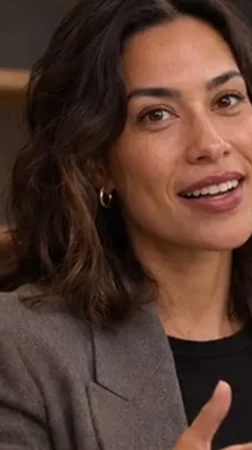
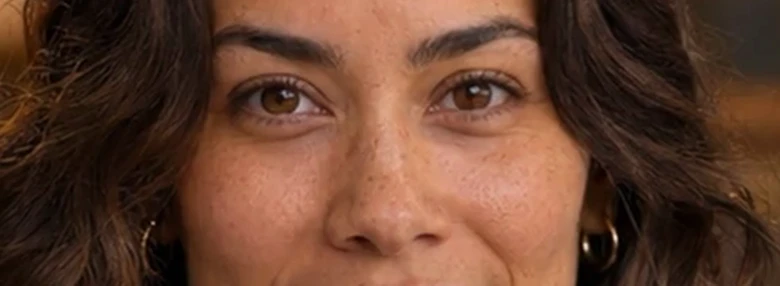
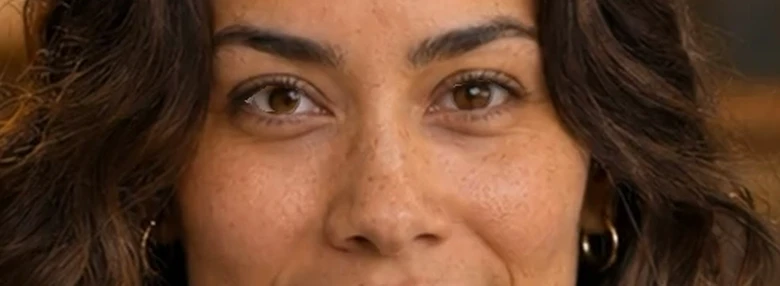
Eye contactNudges your eyes toward the lens when you glance at your notes.
CalibrateFace the camera for a moment so CamSwitch learns where the lens is.
Sound Mixer
Set how loud each thing is in your recording and stream. The speaker button mutes it.
Program mix
Presenter presets
Ready-made layouts for your show.
Pick a layout for cameras and media, or apply a Canvas template that sets up the layout, background and banner together.
Program
Anchor + Headline Bar
1920 × 1080
Start with Anchor + Headline Bar. Add an anchor name and a headline banner.
Use Picture in Picture to show the tutorial with your camera in the corner. Add a topic banner.
Choose Screen + Cam for the vertical output. Put the clip or shared screen above your reaction camera.
See Layout and Banners in CamSwitch
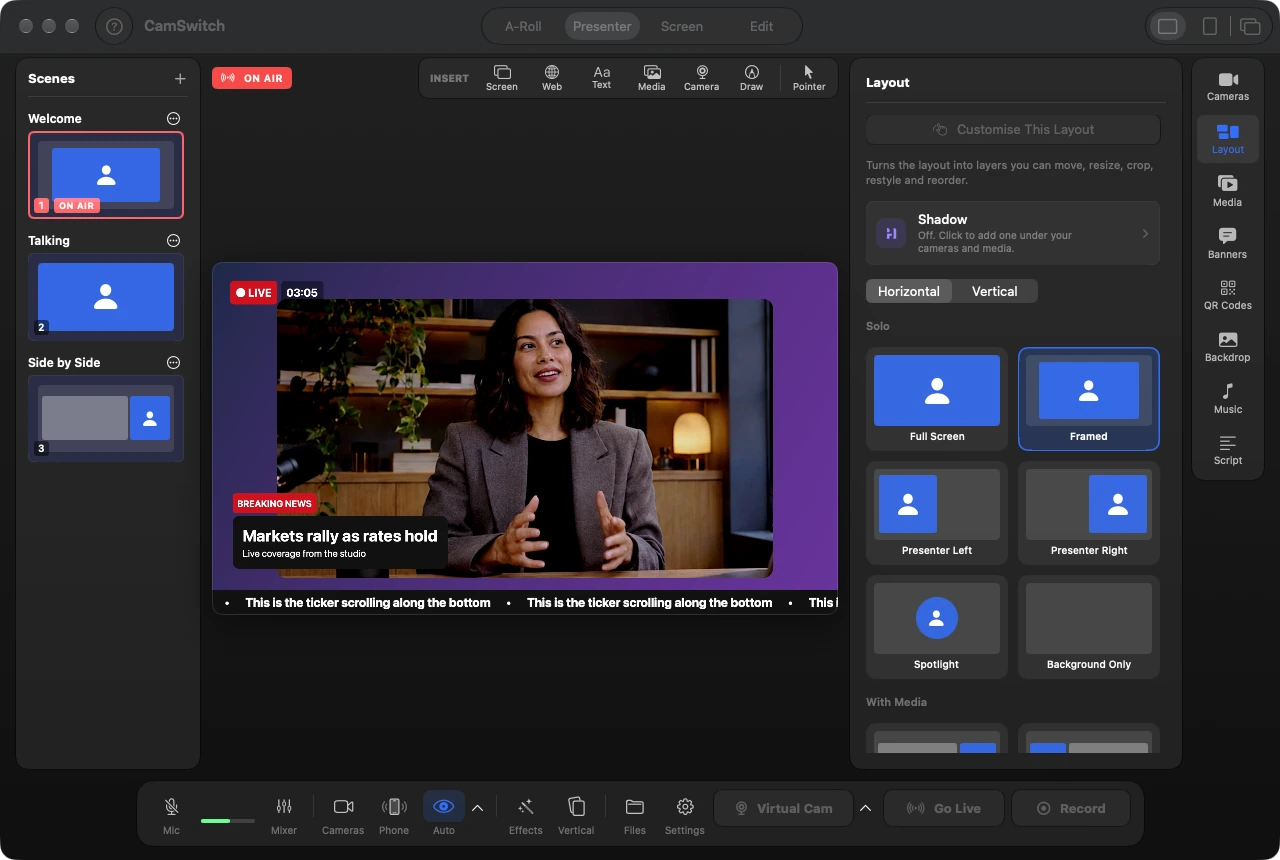
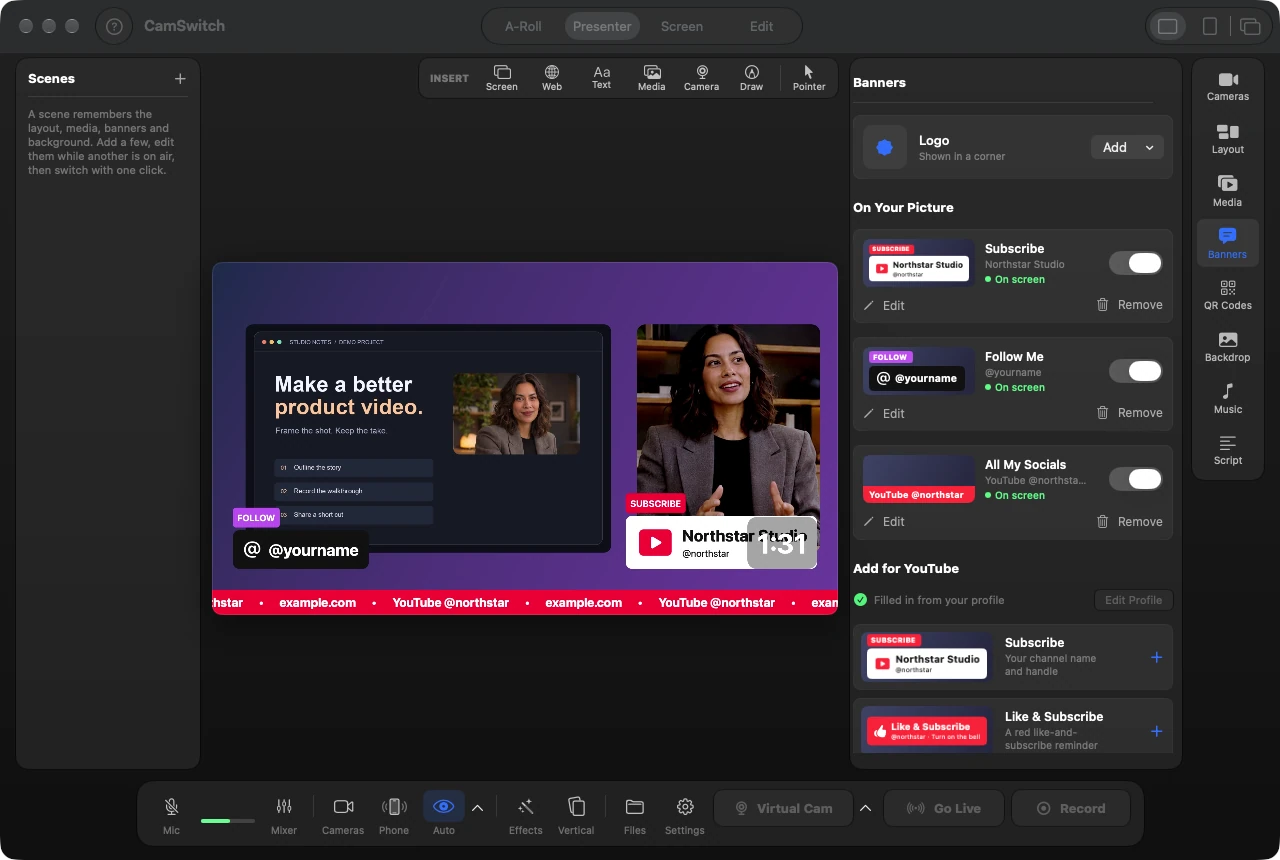
63 ready-made layouts
45 for the wide picture, 18 for Shorts, Reels and TikTok. Pick one, then move anything.
- Full ScreenSolo
- FramedSolo
- Presenter LeftSolo
- Presenter RightSolo
- SpotlightSolo
- Your backgroundBackground OnlySolo
- Media + PresenterWith Media
- Presenter + MediaWith Media
- Split ScreenWith Media
- Picture in PictureWith Media
- Picture in Picture LeftWith Media
- Picture in Picture TopWith Media
- Big MediaWith Media
- Over the ShoulderWith Media
- Big PresenterWith Media
- Media OnlyWith Media
- BREAKINGAnchor + Headline BarNews
- BREAKINGStory Box LeftNews
- BREAKINGStory Box RightNews
- BREAKINGDouble BoxNews
- BREAKINGLive CrossNews
- BREAKINGAnchor Left, Story RightNews
- BREAKINGStory Left, Anchor RightNews
- BREAKINGVideo WallNews
- BREAKINGStory + ReporterNews
- BREAKINGStory + Headline BarNews
- Face Cam CircleStreaming
- Face Cam Circle LeftStreaming
- Face Cam Top LeftStreaming
- Face Cam Bottom CenterStreaming
- Screen + Cam PanelStreaming
- Just ChattingStreaming
- ReactionStreaming
- Reaction (You Big)Streaming
- Starting SoonStreaming
- Two UpMulti-Camera
- Two Up FramedMulti-Camera
- Host + GuestMulti-Camera
- Host WideMulti-Camera
- Main + TwoMulti-Camera
- Three UpMulti-Camera
- Grid of FourMulti-Camera
- Main + ThreeMulti-Camera
- Media + TwoMulti-Camera
- Media + ThreeMulti-Camera
- Full Screen9:16 · Solo
- Framed9:16 · Solo
- Media on Top9:16 · With Media
- Media Below9:16 · With Media
- Media Card9:16 · With Media
- Picture in Picture9:16 · With Media
- Media Only9:16 · With Media
- BREAKINGAnchor + Headline Bar9:16 · News
- BREAKINGStory Box9:16 · News
- BREAKINGStory Over Anchor9:16 · News
- Face Cam Circle9:16 · Streaming
- Screen + Cam9:16 · Streaming
- Just Chatting9:16 · Streaming
- Two Stacked9:16 · Multi-Camera
- Three Stacked9:16 · Multi-Camera
- Main + Two9:16 · Multi-Camera
- Host + Guest9:16 · Multi-Camera
- Media + Two9:16 · Multi-Camera
RECORDING OUTPUTS
One shoot.
More to work with.
Deliver the live cut first. Go back to the camera files or the editable timeline when a different angle tells the story better.
Camera workshop sample edit
24 fps
Program
Webcam
Camera originals
V1Program
ISO 1Webcam
ISO 2Mac
ISO 3iPhone
A1Mic
Select a clip, then pick another camera to recut it.
01 / PROGRAM
The live cut
A finished recording of the shots you put on program.
Program.mov
02 / ORIGINALS
Each camera file
Individual recordings for alternate angles and recuts. They open in any editor.
 CapCut
 iMoviePremiere Pro
Webcam · Mac · iPhone.mov
03 / TIMELINE
Editable timeline
Open the cuts as a timeline and keep editing every switch.
 Final Cut Pro
 DaVinci Resolve
Workshop.fcpxml
04 / SECOND FORMAT
Vertical or square
Enable a second format to record a social version while you shoot wide.
Program 9×16.mov
See the saved recording and editor in CamSwitch
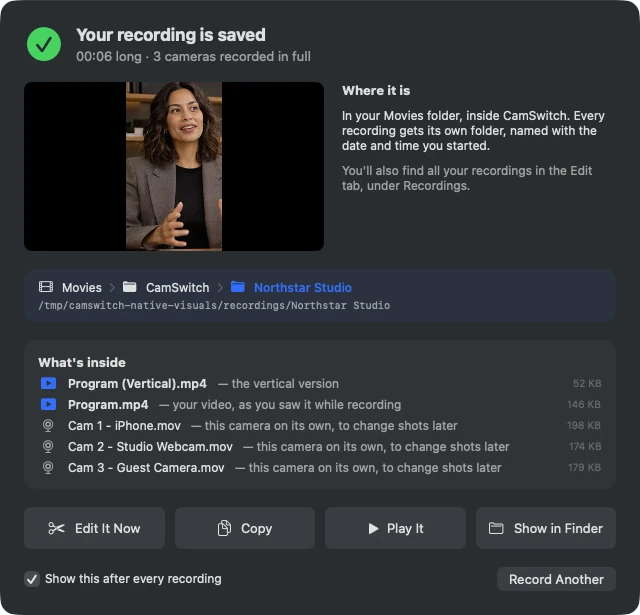
The workshop sample includes three camera files, two program formats and an editable Final Cut Pro timeline.
SHARING & BROADCAST
Give the take somewhere to go.
Send the program live, take it into a call or export a file to post.
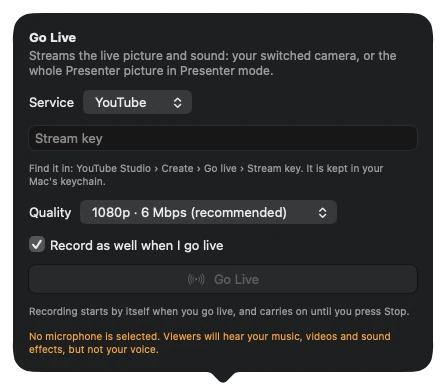
Go live on YouTube
- Frame your camera and choose the opening scene in Presenter.
- Open Go Live, choose YouTube, and enter your stream key from YouTube Studio.
- Select “Record as well when I go live” to save a local copy.
Go live to several at once


- RTMP

YouTube, Instagram & TikTok
Upload the wide recording to YouTube. Trim the vertical recording for YouTube Shorts, Instagram Reels, or TikTok, then post it from the platform.
YouTube Shorts upload guideAny RTMPYouTube, Twitch & Facebook Live
Choose a service and add its stream key. You can also send the program to another RTMP or RTMPS server using its address and key.
YouTube encoder setup

 Any app with a camera
Zoom & Google Meet
Enable the macOS camera extension and pick CamSwitch Camera for your A-roll feed or Presenter scene. Select your microphone separately in the call.
Virtual camera requirements
Compare the tools
What are you shooting?
Compare what each tool is built to deliver and what it costs.
 CamSwitch
Live camera cuts with editable originals
$69
One-time launch price
Choose it for local multi-camera shoots where you want a ready-to-use cut and the option to rebuild it. It saves each camera and an FCPXML timeline, and can record a second aspect ratio during the shoot.
Tella Demos your team can share $29 per user / mo Pro, billed monthly
Record your screen and webcam in clips, edit the transcript, then send a hosted video page with viewer analytics. Pro is $16 per user per month when billed annually. Tella plans
Screen Studio Screen-led Mac tutorials $29 / mo Personal, billed monthly
Automatic zooms and smooth cursor movement guide viewers through a software walkthrough. Personal also has a yearly plan at $9 a month, billed annually. Screen Studio plans
Restream
Browser guests and multistreaming
Free Two simultaneous channels
Run a browser show with guest links and send it to two channels with branding. Standard adds a third channel and removes branding for $19 per month on monthly billing. Professional and higher support simultaneous wide and vertical streaming. Restream plans
 Ecamm LiveA Mac broadcast desk with remote interviews$32 / mo Pro, $384 billed annually
Ecamm Pro bundles browser guests with a greenroom, isolated audio and video recording, and virtual mic and camera. It suits interview shows that need guest audio and in-app production controls. Ecamm plans
RiversideRemote podcasts with separate guest tracks$35 / mo Pro + Live Studio, billed monthly
Record participants locally on their own devices and download separate audio and video tracks. Pro + Live Studio includes 15 hours per month of separate-track downloads. Riverside plans
 Detail for MacRecord and edit multi-cam with iPhonesFree download Detail’s Pro plan sold separately
Detail for Mac connects iPhones and other cameras, records multiple angles, and offers an editor for rearranging a shoot. The Mac app is a free download. Detail’s Pro plan is sold separately. Its public pricing page lists iOS pricing. Detail for Mac
 OBS StudioFree configurable recording and broadcastingFree Open source
Build scenes from cameras, display capture and other sources. OBS supports hotkeys, a mixer and plugins for producers who want to configure their own setup. OBS Studio
Every tool, feature by feature
CamSwitch next to the 17 apps Mac creators use most, with what each one costs.
YesNoPartly, or on higher plansNot stated on their site
| App | Price | No subscription | Several cameras, live switching | Every camera saved | Screen + camera recording | Auto zoom on clicks | Edit by the words | Auto captions | Vertical for Shorts | Live streaming | Virtual camera for calls | Works offline, no account |
|---|---|---|---|---|---|---|---|---|---|---|---|---|
| CamSwitch | $69 onceNo subscription | ✓ | ✓ | ✓ | ✓ | ✓ | ✓ | ✓ | ✓ | ✓ | ✓ | ✓ |
| Live studios and multi-camera | ||||||||||||
| Ecamm Live | $32 / moPro, $384 a year | ✕ | ✓ | ◐ | ✓ | ✕ | ✕ | — | ✕ | ✓ | ✓ | — |
| OBS Studio | FreeOpen source | ✓ | ✓ | ◐ | ✓ | ✕ | ✕ | ✕ | ◐ | ✓ | ✓ | ✓ |
| Restream | FreePaid from $19.99 / mo | ◐ | — | ◐ | — | — | — | — | ◐ | ✓ | — | ✕ |
| Riverside | $35 / moPro + Live Studio | ✕ | — | ✓ | — | — | — | — | — | ✓ | — | ✕ |
| Detail for Mac | Free downloadPro plan sold separately | ◐ | ✓ | ✓ | — | — | — | — | — | — | — | — |
| Screen recorders | ||||||||||||
| Screen Studio | $29 / moor $108 a year | ✕ | ✕ | — | ✓ | ✓ | — | — | ✓ | ✕ | ✕ | — |
| Loom | FreeBusiness $18 / user / mo | ◐ | — | — | ✓ | — | ✓ | ✓ | — | — | — | ✕ |
| Camtasia | From $39 / yearEssentials $179.88 / year | ✕ | — | — | ✓ | ◐ | ◐ | ◐ | — | — | — | — |
| ScreenFlow | $199 onceOne-time | ✓ | — | — | ✓ | — | — | ◐ | — | — | — | — |
| CleanShot X | $35 onceCloud Pro $10 / mo | ✓ | — | — | ✓ | ◐ | — | ◐ | — | — | — | — |
| Tella | $29 / mo$16 / mo yearly | ✕ | — | — | ✓ | ✓ | ✓ | ✓ | — | — | — | ✕ |
| Video editors | ||||||||||||
| Descript | SubscriptionMonthly or yearly | ✕ | ✕ | — | ✓ | — | ✓ | ✓ | — | ✕ | ✕ | ✕ |
| Final Cut Pro | $299.99 onceOne-time | ✓ | ◐ | ✕ | ✕ | — | ◐ | ✓ | ✓ | ✕ | ✕ | ✓ |
| DaVinci Resolve | FreeStudio $295 once | ✓ | ✕ | ✕ | ✕ | — | ✓ | — | ✓ | ✕ | ✕ | ✓ |
| Premiere Pro | $22.99 / moYearly plan | ✕ | ✕ | ✕ | ✕ | — | ✓ | — | — | ✕ | ✕ | ✕ |
| CapCut | FreePro $19.99 / mo | ◐ | — | — | — | — | — | ✓ | ✓ | — | — | — |
| iMovie | FreeWith every Mac | ✓ | — | — | ✕ | — | — | — | — | ✕ | ✕ | ✓ |
From each app’s own website, checked 28–29 November 2026. Prices in USD. Click an app’s name for the full side-by-side. Something out of date? Email [email protected].
Prices in USD. Competitor plans checked .
Launch price
Your Mac.
Your studio.
Get a Mac studio for A-roll, screen recordings and live shows. Keep your camera originals and reopen the cut in Final Cut Pro.
CamSwitch for Mac
$69One-time price, then $149 after launch
Buy CamSwitch7-day free trial · 30-day money-back · Apple silicon · macOS 26+
Before you roll.
Can I buy CamSwitch today?
Yes. CamSwitch is $69 once at launch (later $149), with no subscription. Try it free for 7 days first, and every purchase has a 30-day money-back guarantee. It requires an Apple silicon Mac running macOS 26 or later. See pricing.
What does a guest need to join by link?
A supported browser, camera permission and a connection to your link. Once the host enables guest audio, guests can join audio and choose when to unmute. Temporary links can change when restarted. See microphone controls.
Can I record each remote guest on a separate track?
Yes. A-roll and Presenter recordings save each active guest connection as a synchronized WAV alongside the mixed program. See the saved files.
Can I record my Mac screen with audio and a webcam?
Yes. Screen mode records a display or window with an optional camera bubble, microphone and computer sound. Grant macOS screen recording permission before starting.
What gets saved after a multi-camera shoot?
A-roll and Presenter save the live cut, a separate recording for each camera that was ready when you started, and an FCPXML timeline. Enable a second shape to capture a vertical or square version of the live cut at the same time.
Where does CamSwitch save my recordings?
Each recording gets a dated folder in Movies › CamSwitch. To save future recordings elsewhere, open Settings › Recording › Files and choose a folder under Save recordings in. Use Show in Finder in the same panel to open the recordings folder.
Can I stream or use CamSwitch in a call?
Stream to an RTMP or RTMPS destination with its server URL and stream key. For a call, enable the macOS virtual camera extension and select CamSwitch Camera in a compatible video app.
Which Mac do I need?
CamSwitch requires an Apple silicon Mac running macOS 26 or later. The number of cameras you can use smoothly depends on the Mac, camera resolutions and how they connect.